 SlidesClock
 Not required
GPS
Distance to the branch, allowing for the accuracy the phone reports.
Read once, at Slide In and Slide Out. Never tracked in the background.
ងាយស្រួលសម្រាប់បុគ្គលិករបស់អ្នក រឹងមាំនិងមានសុវត្ថិភាពខ្ពស់នៅផ្នែកខាងក្រោយ។ កំណត់ទីតាំងសាខាតែម្តង ហើយរាល់វេនការងារនឹងដំណើរការដោយស្វ័យប្រវត្តិ។
Today
Ready when you are
សាកល្បងរុញ Slide In ខាងក្រោមដើម្បីមើលដំណើរការជាក់ស្តែង
Before the first shift
ទាញយកកម្មវិធី បញ្ចូលឈ្មោះក្រុមហ៊ុន និងសាខាដំបូងរបស់អ្នកក្នុងរយៈពេល ២ នាទី។
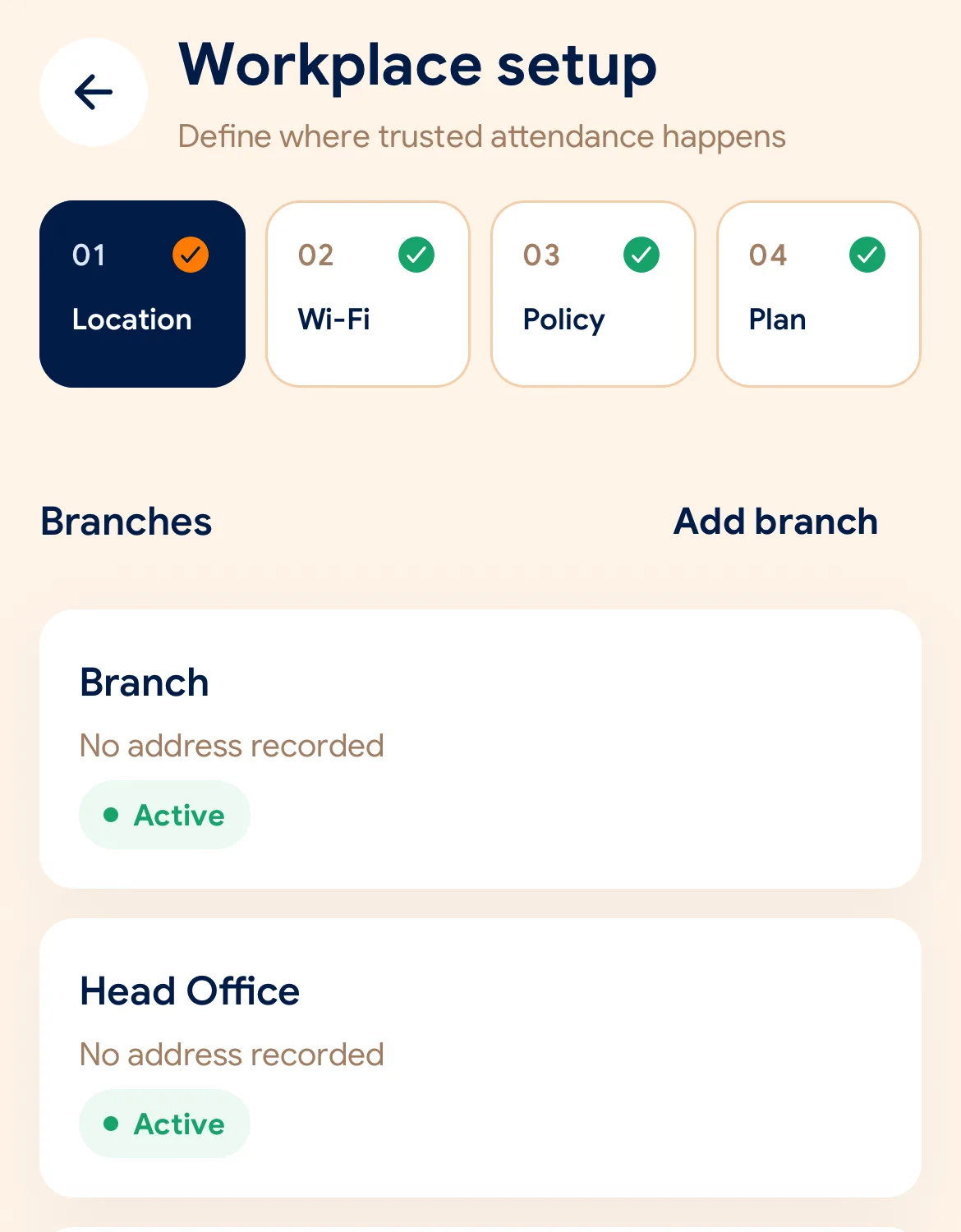
ជ្រើសរើសទីតាំង Geofence លើផែនទី ឬ Wi-Fi ការិយាល័យសម្រាប់សាខានីមួយៗ។
ចែករំលែកកូដអញ្ជើញ ឬ QR Code ទៅកាន់បុគ្គលិក ដើម្បីឱ្យពួកគេចូលរួមក្នុងក្រុមហ៊ុន។
Managers can also work from the web dashboard at app.slidesclock.com.
Every working day
The employee does two of them. The rest happen on the server and in the manager’s view, with nothing more for the employee to do.
បុគ្គលិកបើកកម្មវិធីលើទូរសព្ទផ្ទាល់ខ្លួននៅពេលមកដល់សាខា។
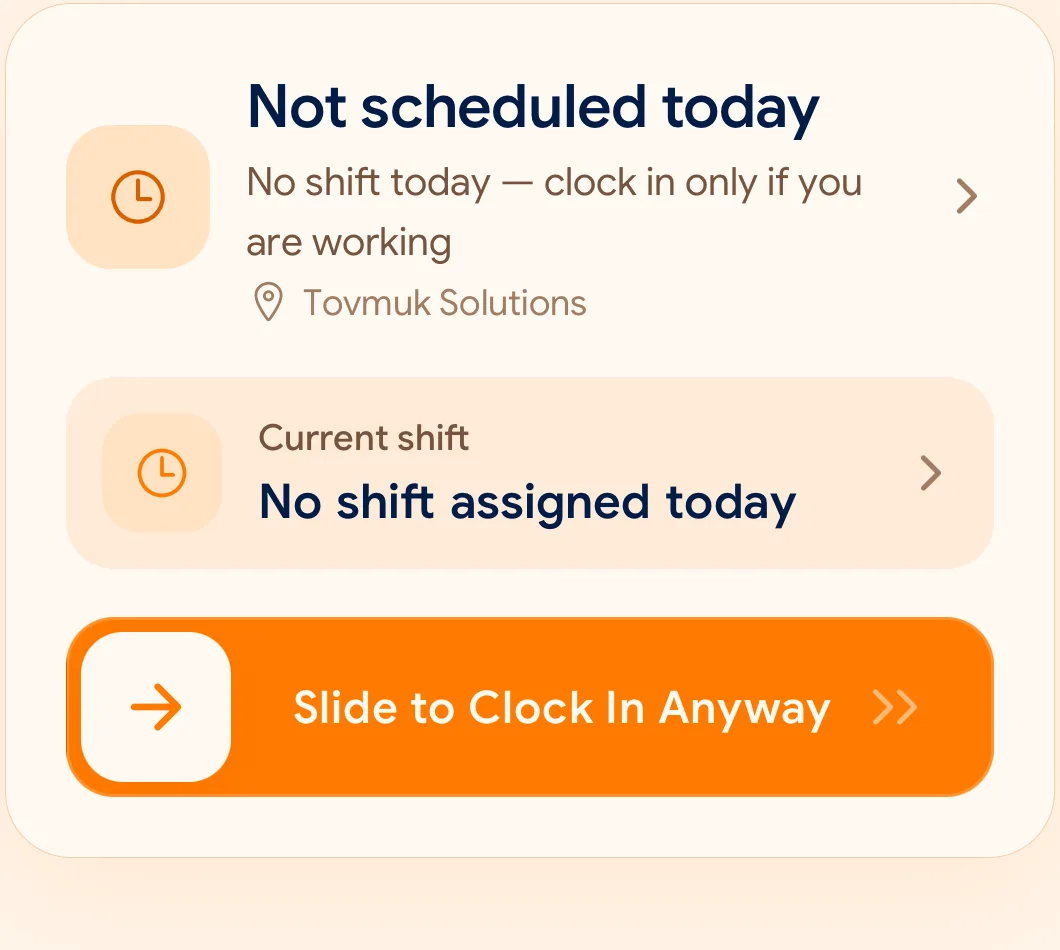
ការរុញតែមួយដងចាប់ផ្តើមការផ្ទៀងផ្ទាត់ GPS និង Wi-Fi ភ្លាមៗក្នុងរយៈពេលមួយវិនាទី។
នៅពេលចប់វេនការងារ រុញ Slide Out ម្តងទៀតដើម្បីកត់ត្រាម៉ោងបញ្ចប់។
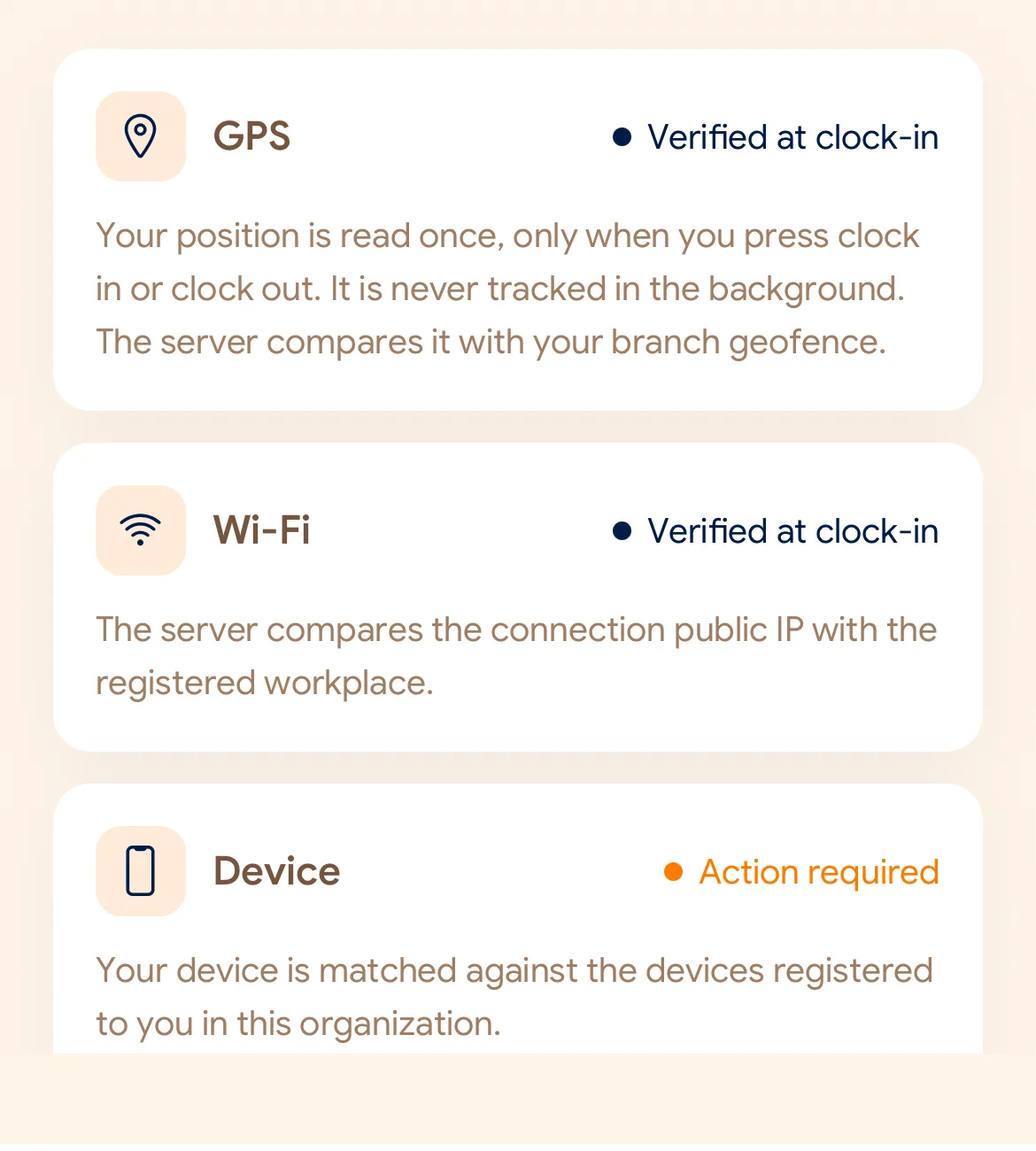
What is checked at the slide
SlidesClock ពិនិត្យលក្ខខណ្ឌតែនៅពេលរុញ Slide ប៉ុណ្ណោះ គ្មានការតាមដានទីតាំងពេញមួយថ្ងៃឡើយ។
Indoors, GPS can drift by a floor or a building. The office network is a steadier signal, so this policy checks Wi-Fi.
Distance to the branch, allowing for the accuracy the phone reports.
Read once, at Slide In and Slide Out. Never tracked in the background.
The connection’s public IP against the network registered for the workplace.
The network password is never collected.
That the request came from a phone registered to that employee.
No extra hardware: it is the phone they already carry.
None of these checks is proof of identity. They are practical checks, and SlidesClock describes them as exactly that.
Two sides of every slide
Schedules and leave are on every plan. Tags mark what needs a paid plan.
In the SlidesClock app
In the app and at app.slidesclock.com
Why it is built this way
បង្កើតឡើងសម្រាប់អាជីវកម្មជាក់ស្តែង ដោយគោរពឯកជនភាពបុគ្គលិក។
ទីតាំងត្រូវបានពិនិត្យតែនៅវិនាទីដែលបុគ្គលិករុញ Slide ប៉ុណ្ណោះ។
ម៉ោងបានមកពី Server កណ្តាល មិនអាចកែបន្លំម៉ោងក្នុងទូរសព្ទបានឡើយ។
Not in the flow, on purpose: